
In today’s rapidly changing digital landscape, managing and protecting corporate data is critical. With the proliferation of mobile devices and applications, companies are looking for robust solutions to ensure data security.
The solution is to centralize the monitoring and management of applications, equipping IT administrators with tools that allow them to manage corporate apps installed on devices, verifying that they are in line with corporate policies, updated and provided with the necessary licenses.
The adoption of a Mobile Device Management (MDM) solution involves control of the entire mobile device used in the company: IT admins have complete control over device settings, configurations, applications and security functions. This scenario is suitable for corporate-owned devices.
Compared to the above scenario, the Mobile Application Management (MAM) solution focuses on the management and security of mobile applications and the data in them. MAM allows you to control and secure applications without requiring any device registration with a management tool. This scenario is preferable in situations where users want to keep personal devices separate from work applications, providing a more user-friendly experience while maintaining data security.
Overview and requirements
The Mobile Application Management (MAM) solution provides app management allowing you to configure criteria and policies for the security of each individual app, including the data on which they operate; this management method contributes substantially to the protection of corporate information while simplifying operations.
Until a few months ago, app protection was limited to mobile devices only (Android and iOS/iPadOS); starting with the June Service Release of Microsoft Intune, the long-awaited MAM feature is now available in Public Preview for Microsoft Edge for Business on Windows systems.
Using MAM, companies will have the possibility to offer their users secure access to corporate data on personal Windows devices: by exploiting the potential of App Protection Policies, Windows Defender and Conditional Access policies, it is possible to allow access to data even from unmanaged devices by checking in advance that they are intact and protected. This can help enterprises improve their security posture and protect sensitive data from unauthorized access, without requiring full device enrollment in Intune.
The advantages of using this solution are many:
- Improve IT security: MAM solution for Windows devices helps protect corporate data from being compromised or stolen; this helps minimize the risk of data loss and/or reputational damage.
- Support for Unregistered Devices: One of the distinguishing features of MAM is its ability to manage applications on unregistered devices. This means that even if a Windows device isn’t enrolled in Microsoft Intune, it can still be managed and controlled, extending the reach of IT management.
- Integration with Microsoft Edge: This integration enables management of the most popular browser on Windows systems, ensuring corporate browsing remains secure and aligned with policies set by IT administrators.
- Centralized management: Microsoft Intune allows you to centrally manage app protection policies through the same management console for device protection policies.
In order to proceed with the activation of MAM on Windows devices, the following prerequisites must be met:
- Windows 11 version 22H2 (or above) with April 2023 Cumulative Update;
- Microsoft Intune license;
- Windows devices must not be directly joined to Azure AD or already enrolled in Microsoft Intune;
- Set the MAM User Scope option to All;
- Latest version of Microsoft Edge;
NOTE: At the moment of writing, the MAM feature for Edge is in Public Preview and requires you to fill out a form to provide your consent to participate in the preview. In this regard, the prerequisites may change following the release in General Availability.
In the next paragraphs, we will go into detail on the steps necessary to use the application protection solution on Windows devices using the Microsoft Intune management tool.
Windows Security Center connector activation
The first step to be able to start using the solution is to enable the Windows Security Center connector within the Mobile Threat Defense section; the procedure consists in the execution of a few simple steps:
- Log in to the Microsoft Intune admin center with administrative credentials;
- Select Tenant admin > Connectors and tokens > Mobile Threat Defense;
- Press the Add button to start the process of adding the new connector;
- From the drop-down menu, select the Windows Security Center option;
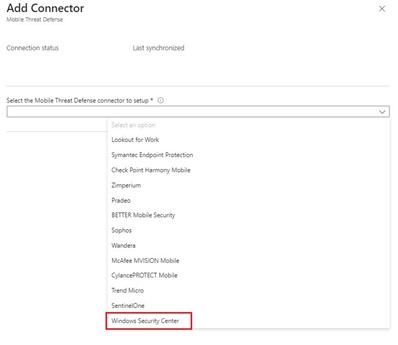
- Confirm the change using the Create button;
- Once the creation process is completed, the connector will be visible in the appropriate section.
NOTA: The connector will report Unavailable status until the first user actually uses MAM for Windows.
At this point, once you have completed the above procedure, you will be able to create the app protection profile necessary to train the Microsoft Edge browser in protecting corporate resources.
App Protection policy creation
As previously reported, with the release of Microsoft Intune Service Release 2306, it is possible to create the appropriate App Protection Policies for the Windows operating system.
Below are the steps necessary to create a new App Protection policy:
- Log in to the Microsoft Intune admin center with administrative credentials;
- Select Apps – App protection policies;
- Press Create Policy button;
- From the drop-down menu Platform, select Windows;

- Assign a name, a possible description of the policy and press the Next button;
- Press the Select apps button, select Microsoft Edge application and press the Select button;
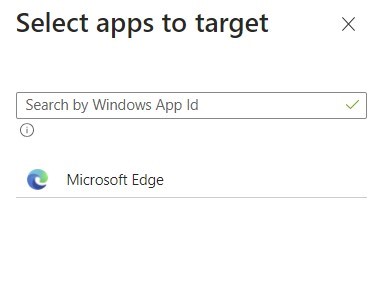
- Press the Next button again;
- Set the settings related to allowed or denied actions based on your needs/policies:
- Receive data from: this option allows you to specify the sources from which users of the organization can receive data; available actions are:
- All sources: users can open data from any account, document, location, or application in the context of the organization.
- No sources: users cannot open data from external accounts, documents, locations, or applications in the context of the organization.
- Send org data to: this option allows you to specify the destinations to which users of the organization can send data; available actions are:
- All sources: users can send corporate data to any account, document, location or application.
- No sources: users cannot send corporate data to any account, document, location, or application outside the organization.
- Allow cut, copy, and paste for: through this option it is possible to specify towards which sources or destinations users can copy/paste company information; the following levels can be defined:
- Any destination and any source: users can copy/cut and paste corporate data to any destination outside the organization.
- No destination or source: users cannot cut, copy or paste corporate data from/to any destination/source.
- Print org data: it is possible to block the printing of company information (Block) or to allow it to be carried out (Allow).
- Receive data from: this option allows you to specify the sources from which users of the organization can receive data; available actions are:

- Confirm the changes using the Next button;
- Within the Health Checks section, define the criteria that must be met in order to access company information, such as: minimum/maximum version of the operating system or the threat level of the device.

- Press the Next button again;
- Click on Add groups, select an Azure AD group containing the interested users and confirm with the Next button;
- Press the Create button to complete the policy creation process;
Conditional Access policy creation
Taking advantage of the full integration between Microsoft 365 services, it is possible to force the presence of the App Protection Policy in order to have access to corporate resources; the application of this security layer takes place through the use of Conditional Access rules:
- Log in to the Microsoft Intune admin center with administrative credentials;
- Select Endpoint security – Conditional Access;
- Press Create new policy button;
- Assign a policy name;
- Within the Users section, select the users or group of users involved;
- Within the Target resources section, select the Office 365 Cloud app;
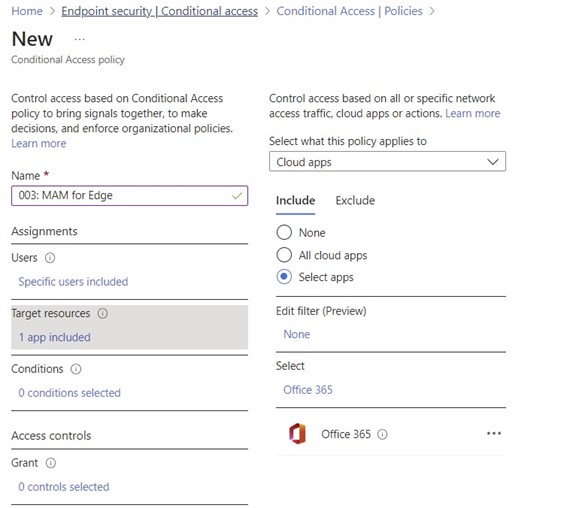
- By accessing the Conditions section, you will need to configure the following settings:
- Select Windows platform within the filter Device Platform;
- Select Browser within the filter Client apps;
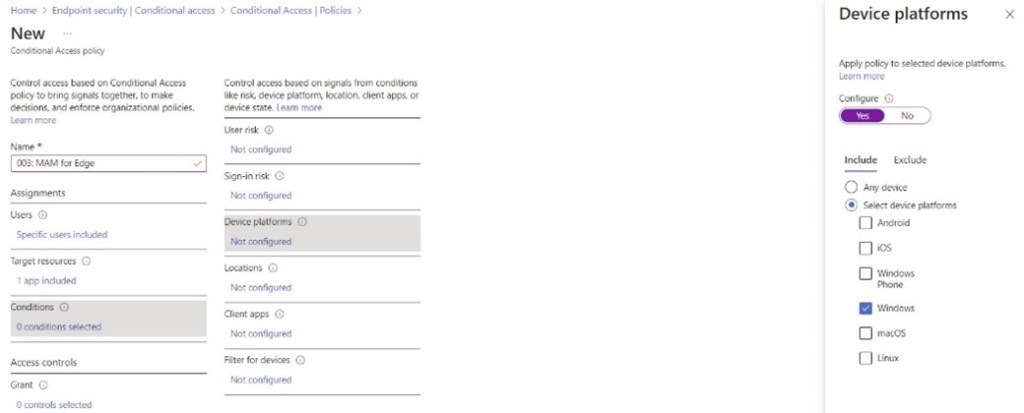

- In the Grant section, flag the Require app protection policy option;
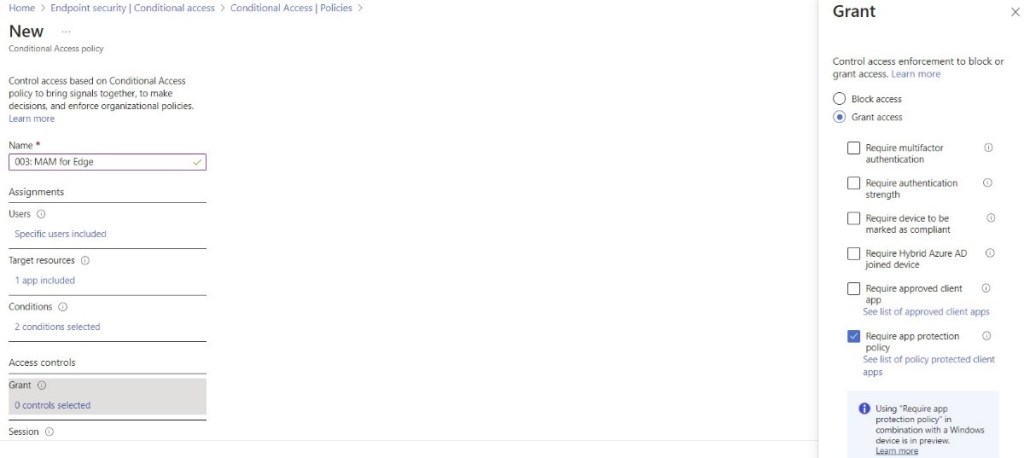
- Select Enable policy – On to activate the new Conditional Access rule;
- Confirm all changes using the Create button;
Edge configuration and User Experience
NOTE: At the moment of writing, the MAM feature on the Microsoft Edge browser needs to be turned on manually.
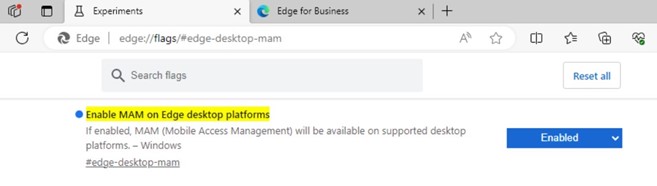
When the user accesses Office 365 through the Microsoft Edge browser will be asked to change profile and/or register the device to allow the correct application of all the previously set criteria (this does not imply complete management of the device on Intune).

Windows device enrollment occurs during the work profile creation process on the browser; to prevent the device from being managed, the user must uncheck the Allow my organization to manage my device box and click OK (as shown below in the figure below) and wait for the correct conclusion of the process which will also imply the application of App Protection Policies created.
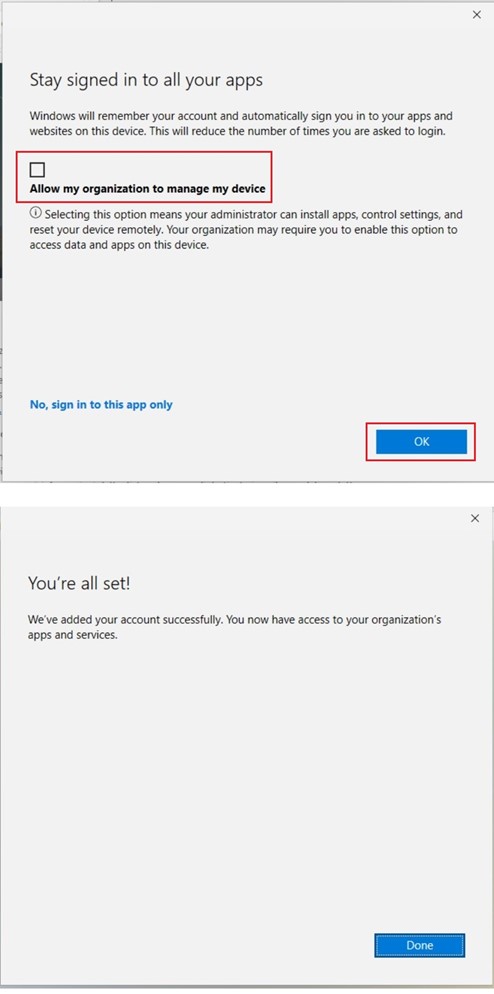
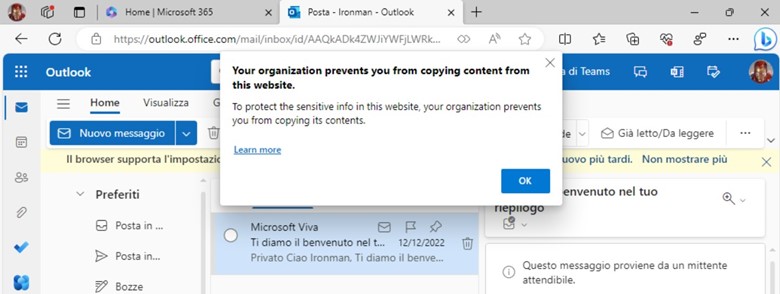
At this point the user, through his work profile, will be able to access corporate information (see Figure 13) but will not be able to perform copy/paste operations as they are blocked by the app protection policies (see Figure 14).

References
Here are some useful references to official documentation:
- Difference between MDM and MAM
- Frequently asked questions about MAM and app protection
- Mobile Application Management (MAM) for unenrolled devices in Microsoft Intune
- Microsoft Edge for Business
Conclusions
Adopting Mobile Application Management (MAM) with Microsoft Intune for Windows devices offers many benefits in line with modern business needs. From enhanced data security to flexible configuration and seamless integration with popular applications, MAM is a critical tool for today’s organizations.
By adopting MAM, companies can ensure that they are at the forefront of technological innovation, leveraging solutions to drive efficiency and safety at the same time. The future is increasingly mobile-based and with MAM organizations are well equipped to face the challenges and opportunities of the digital age.
 Enterprise Mobility Blog