
In an increasingly heterogeneous digital environment such as that of modern companies, the integration of Apple devices with corporate services has become crucial to maximize operational efficiency while ensuring the security of corporate data. One of the significant steps in this direction is the integration with Microsoft Entra ID, Microsoft’s cloud-based identity management service. This synergy not only simplifies access management on these devices, but also offers a number of key benefits for companies.
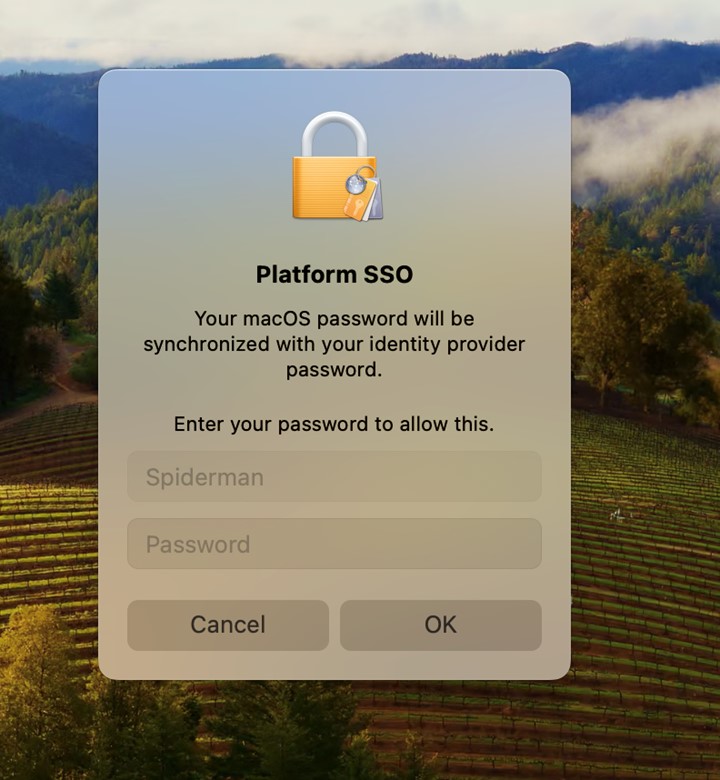
The Platform Single Sign-On feature allows you to synchronize your local account credentials with an identity provider, such as Microsoft Entra ID; the local account password is automatically synchronized, so that the password in Entra ID and the local password match.
Below are some of the benefits related to the feature:
- Integration with Microsoft Entra ID allows you to implement conditional access policies based on specific criteria such as geographic location, device status and other factors. This means that users can access corporate resources from Apple devices only if they meet certain security requirements, thus reducing the risk of unauthorized access.
- Thanks to the integration with Microsoft 365 services, administrators can apply device management policies for Apple devices, such as remote configuration, applying updates, and selectively removing corporate data from lost or stolen devices. This provides greater control and security for the ecosystem of corporate Apple devices.
- The integration between Apple devices and Microsoft Entra ID allows users to easily access the data and applications they need to perform their tasks, regardless of the device they are using, thus increasing productivity. Through support for Single Sign-On (SSO), users are able to access corporate information, without having to repeatedly enter their credentials.
In this article we will see how to configure this feature through Microsoft Intune.
Overview
Platform Single Sign-On (PSSO) is an advanced feature announced by Apple at the 2022 WWDC (Worldwide Developers Conference) aimed at improving the user experience and security in the management of access credentials. As previously reported, PSSO allows users to access multiple services and applications using a single authentication, simplifying the login process and at the same time reducing the number of times it is necessary to enter credentials.
To be able to perform this type of operation, the PSSO functionality relies on the integration between the Apple SSO extension and the Microsoft Enterprise SSO plug-in natively present in the Microsoft Authenticator and Company Portal applications.
The Single Sign-On (SSOe) extension is a configuration profile for macOS, iOS and iPadOS introduced by Apple in 2019 that allows you to redirect authentication requests to a website, an app or a cloud identity provider; The configuration profile instructs the Apple device to redirect the request to the SSOe app installed locally on the device when a user accesses a service with SAML, OAuth 2.0 or OpenID Connect 2.0 authentication methods.
Upon launch, the app will request user authentication to the identity provider, to verify the veracity of the request; at this point, the IdP will issue two tokens: an access token and a refresh token. The refresh token will be used to maintain access to the resources until the next password change.
There are currently three different authentication methods that determine the end-user experience:
- Platform Credential: provides an encryption key associated with the hardware (Secure Enclave) and managed in isolation from system processes. The user’s local account password is not changed and is required to access the Mac.
- Smart card: the user logs in using an external smart card or a smart card-compatible hardware token (Yubikey). Once the device is unlocked, the smart card will be used to grant SSO access to apps that use Microsoft Entra ID for authentication.
- Password: Synchronizes the Microsoft Entra ID user password with the local account so that access to apps that use Microsoft Entra ID is in Single Sign On.
Requirements
The requirements to enable the Platform Single Sign-On (PSSO) feature are:
- macOS 13 or later (although macOS 13 is supported, macOS 14 Sonoma is recommended for the best experience)
- Microsoft Authenticator
- Microsoft Company Portal version 5.2404.0 or later
- An MDM solution (Microsoft Intune) that supports the Extensible Single Sign-On payload
- Support from the Identity Provider for the Platform Single Sign-On authentication protocol.
Enrollment profile creation
The first step to activate the PSSO functionality is to create an enrollment profile that allows you to create and configure the local account present on the macOS devices based on the company account on Entra ID.
Let’s now proceed with the preparation of the enrollment profile on the Microsoft Intune platform:
- Log in to the Microsoft Intune admin center console with administrative credentials;
- Select Devices – iOS/iPadOS – macOS enrollment – Enrollment program tokens;
- Select the Enrollment program token of interest;
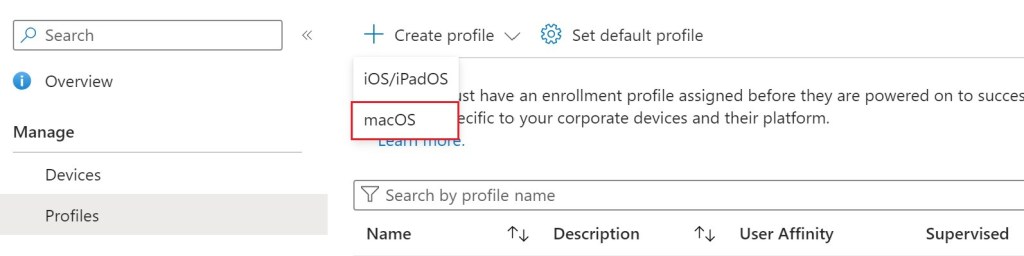
- Access the Profiles section;
- Press the Create profile button and select the macOS option;
- Assign a name and an optional description to the registration profile
- Press the Next button
- From the User Affinity drop-down menu, select the Enroll with User Affinity option and select Setup Assistant with modern authentication as the authentication method
- Keep the slider on Yes for the Await final configuration option
- From the Locked Enrollment drop-down menu, select the Yes option and continue with the wizard via the Next button
- Fill in the Department and Department Phone fields according to your specifications
- Set the screens you do not want to display during the device enrollment process on Intune to Hide

- Proceed through the Next button
- Proceed with the creation of a local primary account, selecting the Yes option from the Create a local primary account drop-down menu
- Move the slider to Yes for the Prefill account info option
- Keep the following settings unchanged

- Press the Next button again
- Verify the configured settings and proceed with the profile creation through the Create button
NB: if you want to apply this enrollment profile by default for all new devices, press the Set default profile button and select the created profile from the macOS Enrollment Profile drop-down menu.

Configuration Profile creation
Once you have completed creating the registration profile, you can now define a new configuration profile to enable and configure the Platform Single Sign-On (PSSO) feature:
- Access the Microsoft Intune admin center console with administrative credentials;
- Select Devices > macOS > Configuration profiles;
- Press the Create button and select the New Policy option;
- From the Profile type drop-down menu, select the Settings Catalog option;
- Press the Create button;
- Assign a name and an optional description to the registration profile;
- Press the Next button;
- Proceed with adding the necessary settings via the Add settings button;
- In the Settings picker section, expand the Authentication entry and, once the Enterprise Single Sign On (SSO) option is selected, add the following settings:
- Extension Identifier
- Platform SSO:
- Authentication Method
- Use Shared Device Keys
- Registration Token
- Screen Locked Behavior
- Team Identifier
- Type
- URLs
- Set the following values for the respective settings:
| Setting | Value |
| Extension Identifier | com.microsoft.CompanyPortalMac.ssoextension |
| Authentication Method | UseSecureEnclaveKey or Password |
| Use Shared Devices Keys | Enabled (do not set if Authentication Method is set to Password) |
| Registration Token | {{DEVICEREGISTRATION}} |
| Screen Locked Behavior | Do Not Handle |
| Team Identifier | UBF8T346G9 |
| Type | Redirect |
| URLs | https://login.microsoftonline.com https://login.microsoft.com https://sts.windows.net https://login.partner.microsoftonline.cn https://login.chinacloudapi.cn https://login.microsoftonline.us https://login-us.microsoftonline.com |

- Proceed with the wizard through the Next button;
- Define any scope tags and press the Next button again;
- Assign the configuration profile to all devices or to a specific group Enter ID;
- Press the Next button;
- Complete the creation process through the Create button;
Company Portal app deployment
As previously reported, one of the requirements for the correct functioning of the PSSO is the presence on the device of the Company Portal app version 5.2404.0 or later.
Below we report the steps necessary to distribute the app for macOS systems:
- Download the latest version of the app in PKG format through the following link;
- Access the Microsoft Intune admin center console with administrative credentials;
- Select Apps > macOS;
- Press the Add button;
- From the App type drop-down menu, select the macOS app (PKG) option;
- Press the Select button;
- Press the Select app package file link and, through the appropriate Browse button, select the previously downloaded file;
- Confirm the selection through the OK button;
- Assign a name, description and Publisher to the new app;
- Press the Next button;
- Do not set Pre-install or Post-install script and press the Next button again;
- From the Minimum operating system drop-down menu, select the minimum OS version and proceed with the Next button;
- Keep the options set in the Detection rules tab unchanged and continue with the wizard through the Next button;
- Assign the configuration profile to all devices or to a specific Entra ID group;
- Press the Next button;
- Complete the creation process through the Create button;
User Experience (Password)
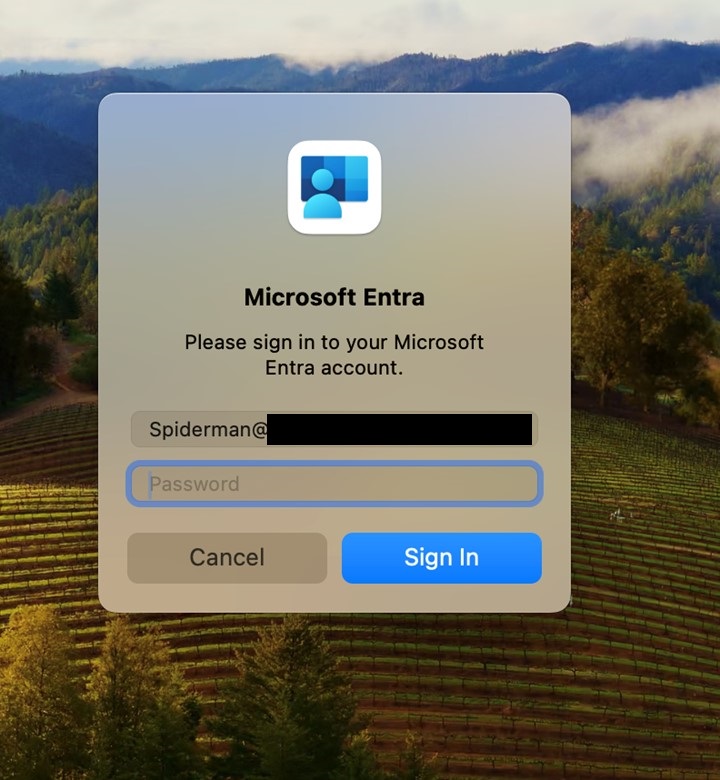
Below are some screenshots of the user experience provided during the registration and configuration process using the password as an authentication method:



User Experience (Secure Enclave)
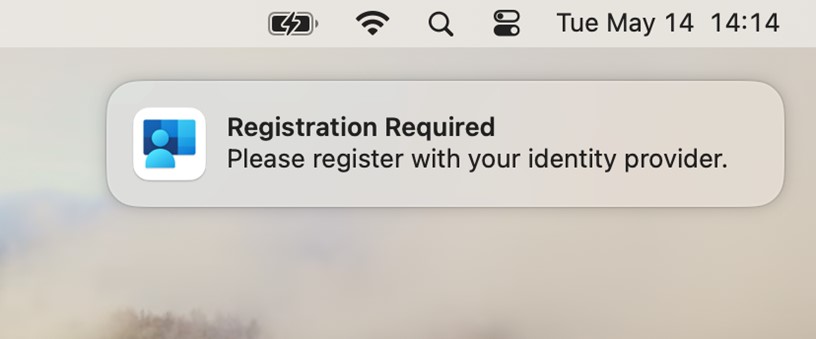
Below are some screenshots of the user experience provided during the registration and configuration process using Secure Enclave as the authentication method:




References
Here are some useful references to the official documentation:
- Intro to single sign-on with Apple devices
- Platform Single Sign-on for macOS
- Microsoft Enterprise SSO plug-in for Apple devices
Conclusions
Platform Single Sign-On functionality on macOS devices represents a significant step forward in the management of access credentials; by implementing PSSO, companies can improve the user experience, increase security and simplify authentication management. Investing in this integration not only optimizes business operations, but also helps protect sensitive data and improve the overall user experience.
 Enterprise Mobility Blog