
The management of a large fleet of Apple devices in an enterprise company requires automation, security, and consistency.
When organizations purchase iPhones, iPads, or Macs in bulk, the traditional manual setup of provisioning these devices quickly becomes inefficient and error-prone; this is where the Apple Device Enrollment Program (DEP), now fully integrated into Apple Business Manager (ABM), plays a crucial role.
DEP allows IT administrators to automatically configure and enroll Apple devices into a Mobile Device Management (MDM) platform such as Microsoft Intune. Instead of requiring IT admin or end users to perform manual steps, devices can be shipped directly from Apple or authorized resellers, powered on by the employee, and immediately receive company policies, security configurations, and applications without IT intervention.
The benefits of DEP for enterprises include:
- Zero-touch deployment: devices are ready to use out-of-the-box, with no manual configuration.
- Enhanced security: users cannot remove the MDM profile, ensuring compliance with company policies.
- Consistency at scale: all devices follow the same enrollment workflow, reducing misconfigurations.
- Integration with ABM: simplifying device lifecycle management and linking procurement with deployment.
At the heart of this workflow lies the ADE token (Automated Device Enrollment token). The token establishes the trust relationship between Apple Business Manager and the MDM platform (Intune). Since this token expires periodically, administrators must know how to retrieve, validate, and update it to avoid disruptions in the enrollment process. In some cases, a synchronization problem may occur between the MDM solution and the Apple Business Manager service even if the certificate does not appear to be expired; this anomaly could be caused by a mismatch between the certificate uploaded to Microsoft Intune and the one stored on ABM. The following paragraph will provide a step-by-step technical guide for replacing the value of the current .Pem file on ABM so that Intune can be correctly synchronized with Apple Business Manager.
Replacing ADE Token
1. Retrieve the Token URL in Intune
- Log into the Intune portal: https://intune.microsoft.com/
- Navigate to: Devices > iOS/iPadOS > Enrollment > Enrollment program tokens > Select the relevant token
- Look at the browser URL. It will contain the tokenId (GUID) that uniquely identifies the ADE token (“/tokenId/<GUID>”)
Example:
https://intune.microsoft.com/#blade/Microsoft_Intune_Enrollment/DepTokenMenuBlade/overview/tokenId/c025d780-6761-4b2e-ae19-eba47af8aa242. Retrieve the Token ID using Microsoft Graph
- Go to Graph Explorer with tenant admin credentials: https://aka.ms/ge
- Set the request to GET and run: https://graph.microsoft.com/beta/deviceManagement/depOnboardingSettings
- Review the JSON response. Find the “tokenName” that matches the target ADE token and copy the “id” value, which must match the tokenId obtained from Intune.
Example response:
{
  "id": "c025d780-6761-4b2e-ae19-eba47af8aa24",
  "tokenName": "Intune ADE Token"
}
3. Retrieve the Public Encryption Key for the Token
- Access Graph Explorer.
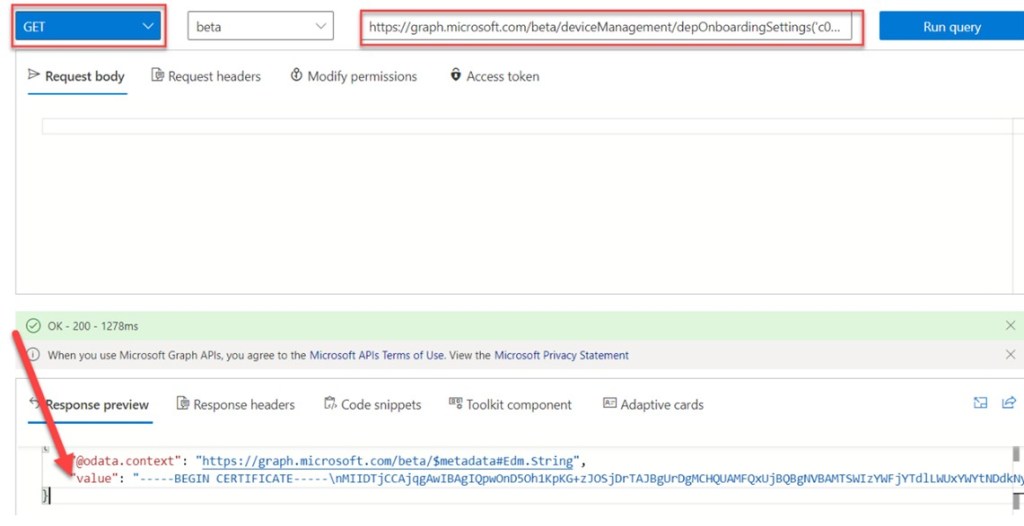
- Set the request to GET and run:
https://graph.microsoft.com/beta/deviceManagement/depOnboardingSettings('<TokenGuid>')/getEncryptionPublicKeyExample:
https://graph.microsoft.com/beta/deviceManagement/depOnboardingSettings('c025d780-6761-4b2e-ae19-eba47af8aa24')/getEncryptionPublicKey- The response will return a certificate string in Base64 format (“value”).
⚠️ Important: do not run the query multiple times. Always use the latest value returned.
4. Prepare the PEM File
- Copy the “value” returned from Graph.
- Remove newline characters \n (there should be three).
- Save the cleaned Base64 certificate into a .pem file using a text editor.
Example:
MIIDTjCCAjqgAwIBAgIQKdba60hc8L5M0lxhF9BEKDAJBgUrDgMCHQUAMFQx...

...F72U9SQytXLdEjn0ZSZxSxoFUrbxxQgLQ==
5. Download a Public Key from Intune
- Log into the Intune portal: https://intune.microsoft.com/
- Navigate to: Devices > iOS/iPadOS > Enrollment > Enrollment program tokens and select Create.
- Accept the terms (“I grant Microsoft permission…”).
- Click Download your public key.
- This downloads a .pem file.

⚠️ Do not complete the wizard to avoid generating a new token.
6. Replace the PEM Content
- Open the downloaded .pem file.
- Replace its contents with the certificate obtained from Graph (step 4).
- Save the file.
7. Update Apple Business Manager configuration
- Sign in to Apple Business Manager: https://business.apple.com/
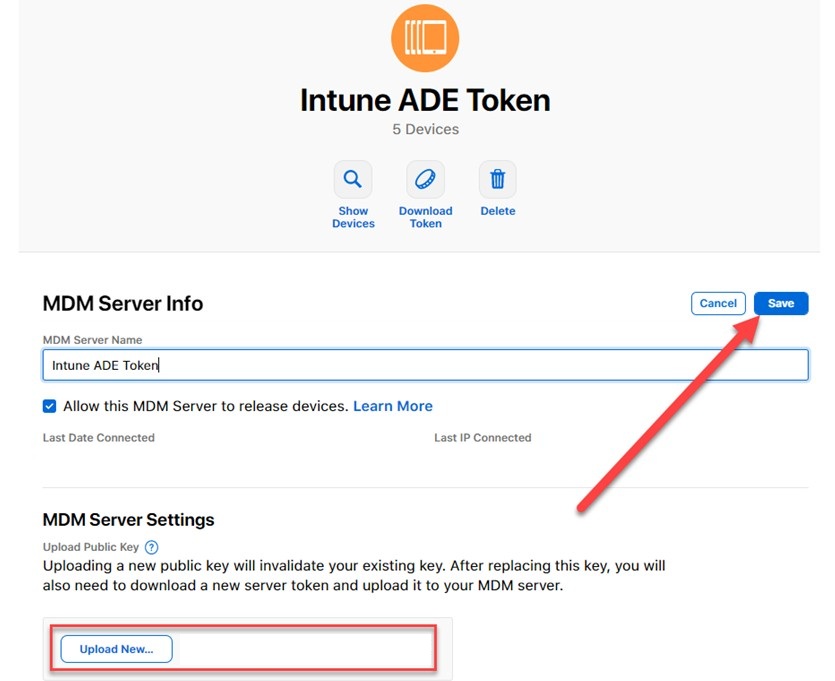
- Go to: Settings > MDM Servers > Select the relevant MDM server (ADE token).
- Click Edit → Upload new public key.
- Select the .pem file you just updated.
- Save changes.
8. Force synchronization from Intune portal
- Log into the Intune portal: https://intune.microsoft.com/
- Navigate to: Devices > iOS/iPadOS > Enrollment > Enrollment program tokens > Select the relevant token
- Go to Devices section and press Sync button.
- If everything works as expected, you will see new devices already present in Apple Business Manager and you will see the updated date/time in the Last successful sync field.
Conclusion
By following this procedure, IT administrators ensure the public key associated with the ADE token is correctly synchronized between Microsoft Intune and Apple Business Manager. This prevents enrollment disruptions and guarantees that corporate Apple devices can continue to be provisioned seamlessly and securely.
 Enterprise Mobility Blog