
Windows Autopatch isn’t simply another update feature but a service that allows you to manage the complete update cycle for Windows, Microsoft 365 Apps, Edge, and Teams, centrally orchestrated by Microsoft. The key point is to understand how to monitor the entire process effectively through the reporting available on the Microsoft Intune portal, making this component the added value of the service.
One of the most common misconceptions when it comes to update automation is that, once the process is outsourced to the cloud, visibility becomes less important: when processes are automated, it becomes essential to have tools that provide a clear understanding of how the process is functioning. In this sense, Windows Autopatch provides a set of reports that help you understand whether the operating model is truly working, providing insights into the status of devices, the progress of the various rollout phases, and any critical issues that emerge so you can intervene promptly (and in some cases proactively).
It is worth noting that Windows Autopatch reporting revolves around three fundamental pillars:
- The first is visibility into the status of updates, both Quality Updates and Feature Updates;
- The second concerns the ability to interpret trends over time to assess whether the organization is responding appropriately during the update process;
- The third, perhaps the most interesting, concerns readiness, which involves understanding in advance whether devices are truly ready to receive an update without causing malfunctions.
From this perspective, the value of reporting is not only technical but also decisional: within an organization, it is crucial to understand whether the overall level of risk exposure is under control and whether the update process is sufficiently stable and predictable.
For a long time, analyzing system update status was approached with a linear logic: the primary objective was to understand whether a machine was up to date or not. Today, however, this approach is insufficient, as the growing prevalence of cloud-managed, distributed environments requires a more nuanced and contextualized understanding. It is no longer sufficient to know that a device is out of alignment; it is necessary to understand whether it is actually compliant with the deployment schedule, whether it is experiencing issues during the update process, or whether it is outside the expected management scope.
It is precisely for the reasons outlined above that Windows Autopatch reporting becomes strategic: the reports are designed not only to show a compliance percentage, but to help IT administrators distinguish the various situations present in their environment. In the next section, we will delve deeper into the Windows Autopatch reporting available in the Microsoft Intune console.
Report overview
The Windows Autopatch reporting architecture is built according to a clear and easily readable logic: for Quality updates and Feature updates, Microsoft provides three main views: a summary dashboard, a status report for each device, and a trend view over time. This division is particularly effective because it allows for a shift from a general overview to a detailed analysis, all the way to a medium-term trend assessment.
This model is complemented by other tools that provide a comprehensive view of the system update status:
This model is supported by other tools that allow for a comprehensive view of the system update status:
- The Management Status Report allows you to extend the analysis to the entire tenant, including Windows devices that are not yet receiving updates according to established policies.
- The alerts section highlights any conditions that may prevent updates from completing correctly.
- The Device Update Journey supports IT administrators in troubleshooting by showing all the steps an individual device goes through during the various deployment phases.
- The Update Readiness Checker verifies whether devices meet all the requirements needed to receive updates, checking for any conditions that could block or delay installation before deployment begins.
Overall, a structured and comprehensive observability model emerges. It goes beyond simply reporting the final outcome of the update to allow for analysis of the entire update release process: from prerequisite verification to deployment to the identification of any critical issues. This makes it possible not only to determine whether an update was successful, but also to understand how and why it achieved that result.
Below, we list the main reports provided by Windows Autopatch, along with a description of the features offered and operational details.
| Report | Update | Level | Purpose |
|---|---|---|---|
| Quality Update Summary Dashboard | Quality update | Overview | Provide an aggregate view of device update status. |
| Quality Update Status Report | Quality update | Details | Details for each device on current update status, ring membership, readiness, and alerts. |
| Quality Update Trending Report | Quality update | Trend | Provide a timely view of device update status. |
| Hotpatch Quality Update Report | Quality update | Overview | Check, at the policy level, how updates are progressing on enabled devices. |
| Feature Update Summary Dashboard | Feature update | Overview | Provide an overall view of the rollout with respect to the target version. |
| Feature Update Status Report | Feature update | Details | Details for each device on current update status, ring membership, readiness, and alerts. |
| Feature Update Journey | Feature update | Overview + Trend | Show the sequence of update events on a timeline and visualize the status of the updated deployment at different stages of the deployment process |
| Feature Update Trending Report | Feature update | Trend | Provide a timely view of device update status. |
| Autopatch Management Status Report | Quality update/Feature update | Details | Provide a tenant-wide view of all Windows devices managed by Intune, including those not covered by update policies or not enrolled in Windows Autopatch |
| Alerts and Remediations | Quality update/Feature update | Overview | Highlight issues that may compromise the ability of devices to stay up-to-date or compliant |
| Update Readiness Checkup | Quality update/Feature update | Overview | Check in advance whether your devices are actually ready to receive quality updates or feature updates |
Quality Update Summary Dashboard
Within the Reports > Windows Autopatch > Windows quality updates section, the Quality Update Summary dashboard is the starting point for those who want to quickly understand how the monthly security update cycle (Quality Update) is progressing: its purpose is to offer an aggregate view, divided by Autopatch group and deployment ring, showing how many devices are updated, how many are still being updated, how many are not aligned and how many, instead, are in a non-readiness state.
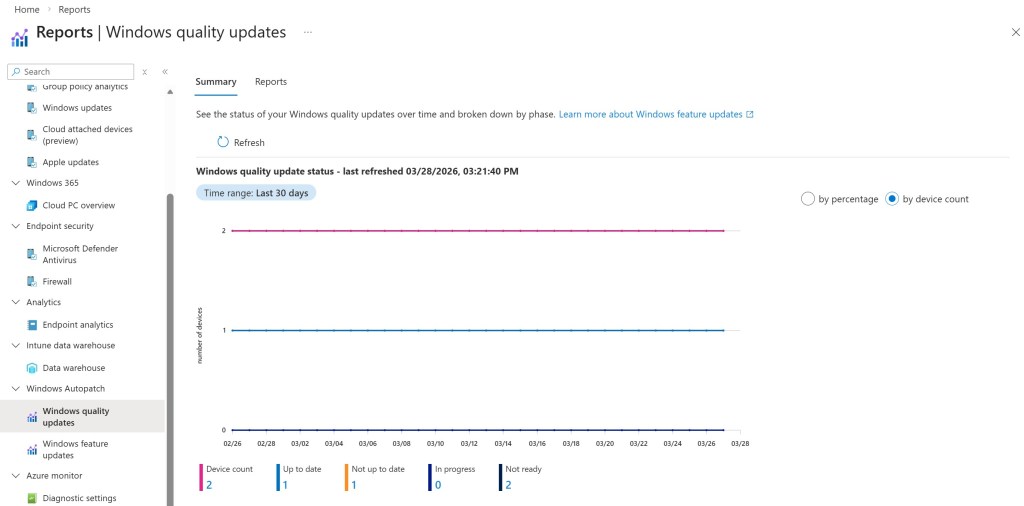
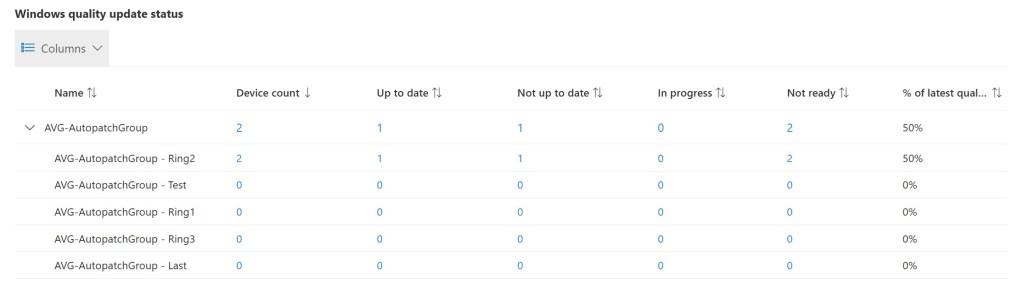
The strength of this dashboard is its immediacy, as it allows you to quickly understand whether the monthly update cycle is proceeding smoothly or whether critical situations are present. For example, an increase in “not ready” devices may indicate that the issue isn’t related to a single update, but rather to a more general readiness condition. Conversely, a high number of devices in “in progress” status for an extended period may be indicative of user experience issues, such as users failing to reboot, or issues with updates during installation or content distribution.
This dashboard is very useful for those responsible for service governance, as it allows you to immediately understand whether the level of risk is increasing or whether the process is proceeding consistently with expectations.
Quality Update Status Report
Selecting the Reports tab within the Windows quality updates section, a series of reports are available, including the report called Quality Update Status: this report provides a breakdown for each individual device where important information is shown such as: the current status of the update, the ring it belongs to, readiness and, above all, the presence of any alerts.
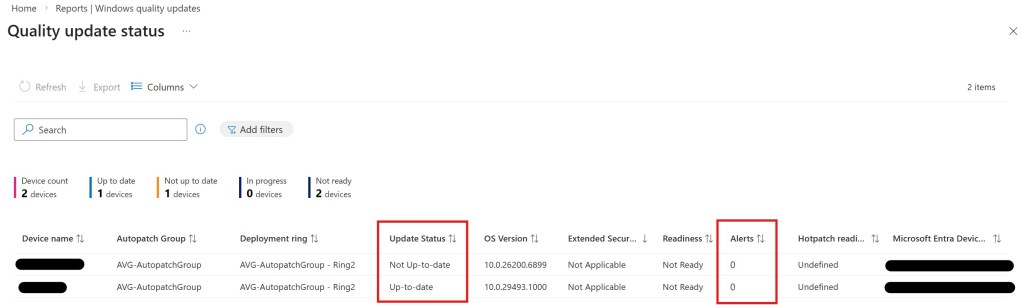
By providing detailed device information, this report supports IT admins in troubleshooting and more effectively resolving any issues. For example, a device that isn’t updated but isn’t displaying alerts and appears ready could be a symptom of a temporary or physiological situation, while a device that isn’t updated, isn’t ready, and is displaying alerts could indicate a real issue requiring remediation.
Furthermore, this dashboard is also very useful for understanding whether an anomaly is widespread or limited to a specific ring. When problems are concentrated within a specific group, the cause could be related to policy configuration or specific features (hardware and/or software) shared between devices in the same group.
Quality Update Trending Report
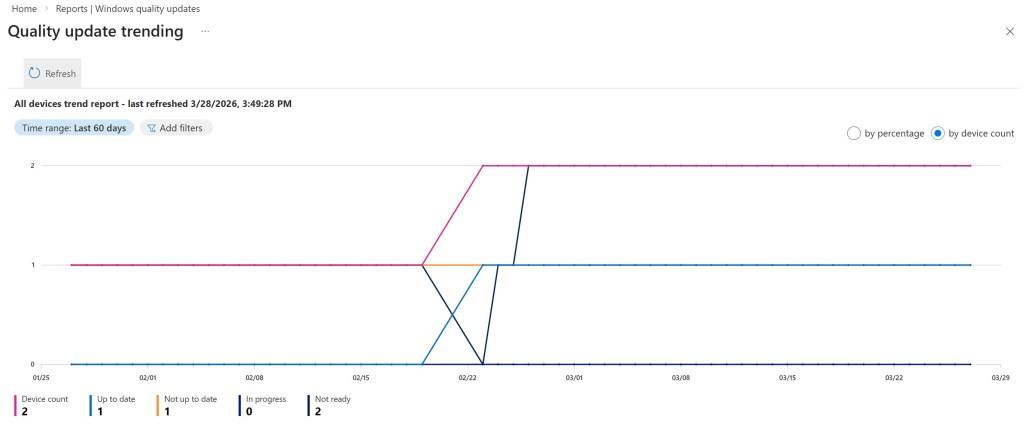
The Quality Update Trending report offers a timeline perspective that helps assess whether an organization is improving its deployment and adoption of Quality Updates.
This report is useful because it helps you interpret the data correctly, not just by focusing on the number of updated or non-updated devices at a specific point in time, but also by understanding whether the process as a whole is stable. Seeing a certain number of non-updated devices may be normal in some cases, while in other cases it could be a sign of a structural problem. Analyzing trends over time makes it easier to determine whether this is a temporary situation or a recurring issue. This report also allows you to understand whether there are rings that are periodically falling behind in updates or, more importantly, whether the corrective actions introduced to mitigate certain issues are having an impact on your device fleet.
Hotpatch Quality Update Report
Windows Hotpatch, introduced for Windows 11 Enterprise version 24H2 clients, is an update mode that allows you to apply monthly security updates without requiring an immediate device reboot. Essentially, the patches are installed and applied in memory, thus reducing the number of reboots required during the normal update cycle.
It’s important to note that Hotpatch doesn’t eliminate reboots entirely, but it does reduce their frequency. Microsoft uses a cyclical model to distribute specific updates called Baseline updates in specific months of the year (January, April, July, and October), which require a reboot. In subsequent months, security updates are distributed in hotpatch mode, meaning they don’t require a reboot.
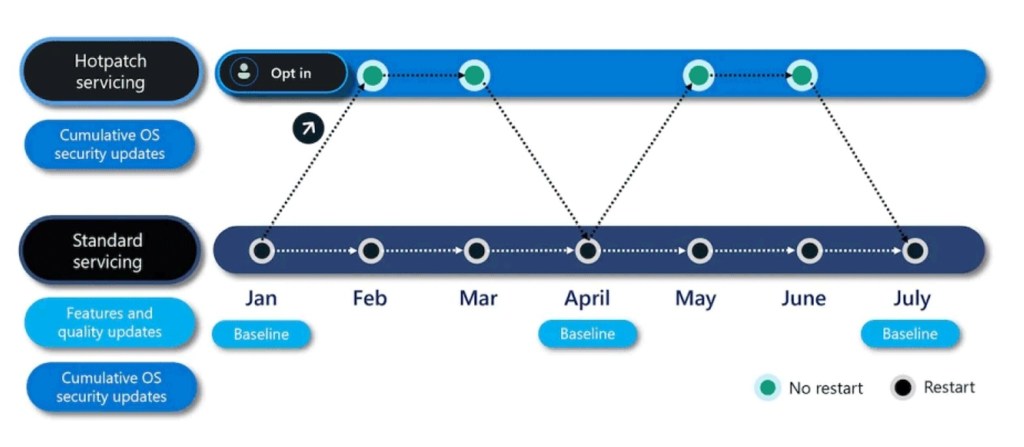
The report dedicated to this feature allows you to verify, at the policy level, how updates are progressing on enabled devices, with the aim of understanding how many are actually leveraging this model and benefiting from less impactful updates.
The more an organization wants to reduce the impact of updates on users or critical systems, the more useful it becomes to have a view that concretely measures the outcome of this choice.
Feature Update Summary Dashboard
Feature updates are the updates that bring Windows to a new operating system version (build). Unlike Quality Updates, which fix bugs and vulnerabilities, Feature Updates introduce new features and platform changes.
For this reason, Feature Updates are generally more complex to manage, as they require consideration of a number of factors, such as application compatibility, hardware requirements, available disk space, or the presence of compatibility blocks applied by Microsoft (Safeguard Hold).
The Feature Update Summary dashboard (located in the Reports > Windows Autopatch > Windows Feature Updates section) therefore provides a clear and quick overview of the situation. The goal is to provide a comprehensive view of the rollout for the target version, highlighting the various statuses: aligned, updating, not ready, etc.
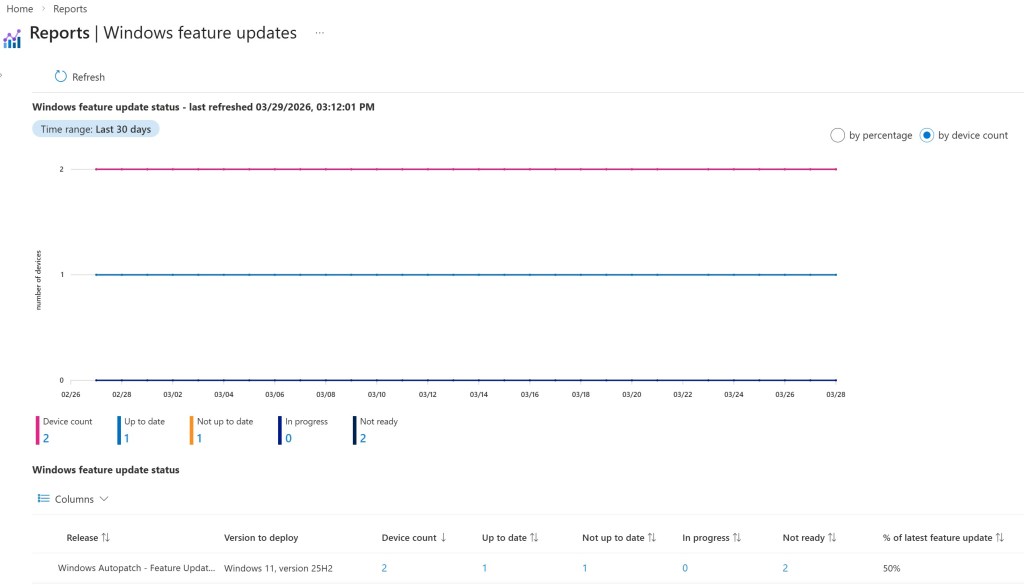
Regularly applying Feature Updates is essential to maintaining a Microsoft-supported version of Windows; each release has a defined support window: for example, Pro editions are supported for 24 months from the release date, while Enterprise versions have a longer support period of 36 months. It’s important to keep in mind that when a version exits its support period, the device won’t even receive monthly security updates, thus exposing its infrastructure to security risks.
For those managing release schedules, this view therefore represents a concise yet essential indicator that provides visibility into the progress of the deployment and, if necessary, raises concerns that may require a review of the waves or targeting criteria.
Feature Update Status Report
As with Quality Updates, a series of detailed reports are available for feature updates by selecting the Reports tab within the Windows Feature Updates section. The Feature Update Status report provides detailed information on the rollout at the individual device level and, for this reason, is one of the most important reports when managing version upgrades. In this view, in addition to having visibility into the update status of devices, you can also see the device’s current condition and readiness level.
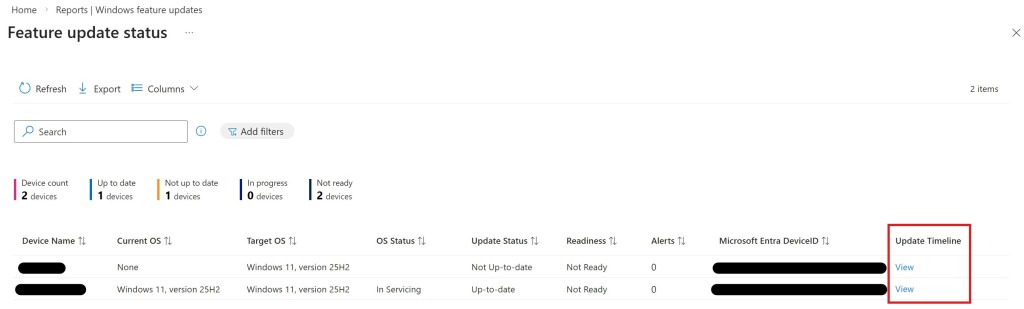
Furthermore, using the View button in the Update Timeline column, you can view in detail the various steps that the device has performed or is performing during the update process: this information is essential for IT operators who need to carry out troubleshooting activities, making the analysis simpler and more effective.
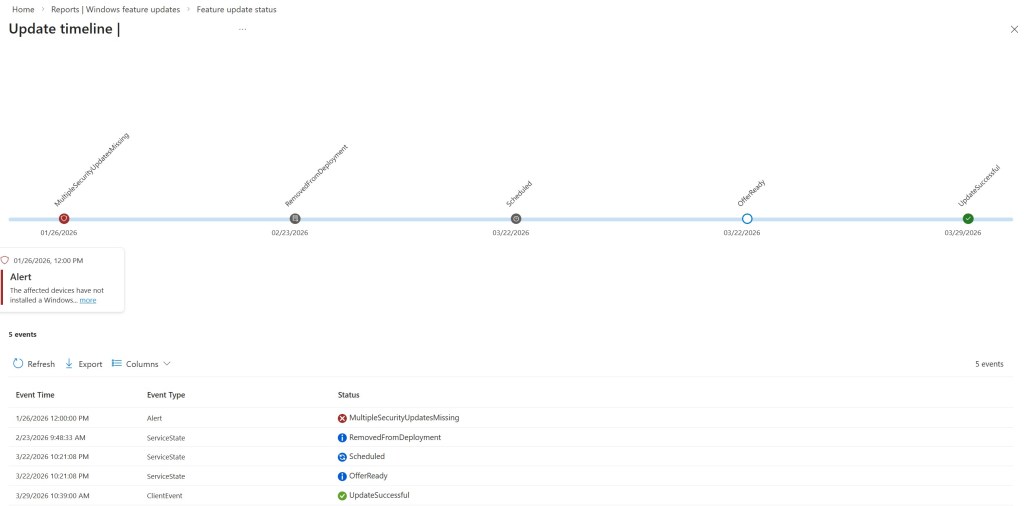
For example, in the screenshot above, you can see how the device in question started from a critical situation of incorrect updates until it successfully applied all the distributed updates.
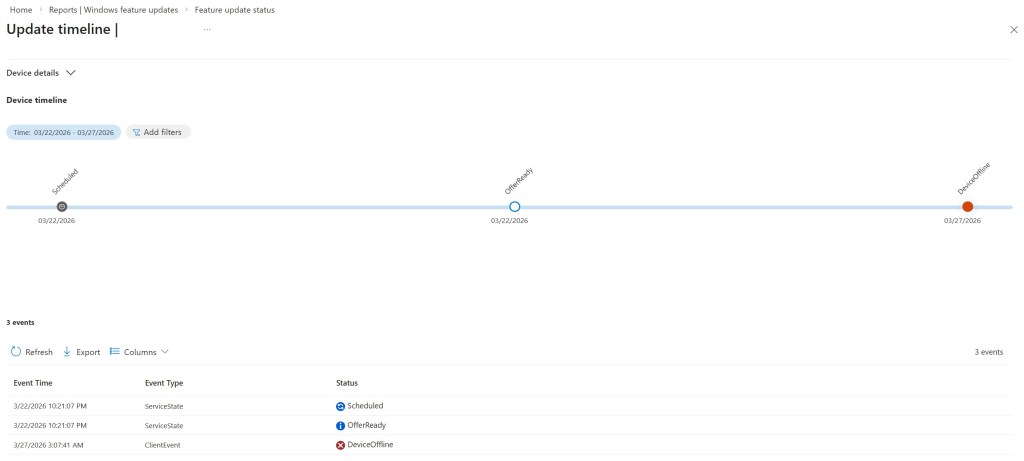
Conversely, the device in the screenshot above shows how the lack of updates is attributable to a lack of communication with the platform. From a technical decision-making perspective, this report is very useful, as it helps translate a rollout into a more orderly reading by separating the truly problematic devices from those still within their deployment window.
Feature Update Journey
One of the historical limitations of update reporting has been the use of overly generic statuses, such as “In progress,” which often fail to provide a clear understanding of what’s actually happening on the device. The Feature Update Journey was created precisely to overcome this limitation, offering a more detailed view of the path devices follow throughout the entire update process.
By selecting the target version and update policy, IT admins can generate a report that provides a clear overview of all phases of the update process.
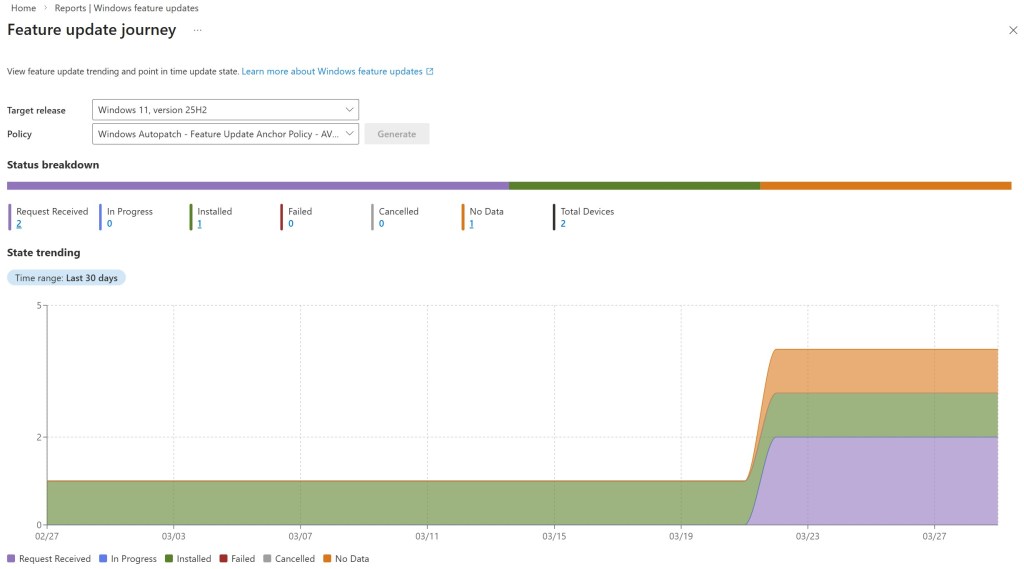
The value of this feature lies in clearly displaying the sequence of events on a timeline: you can see when the update is offered, when the download process starts, when the installation begins, and even determine whether the process has completed successfully.
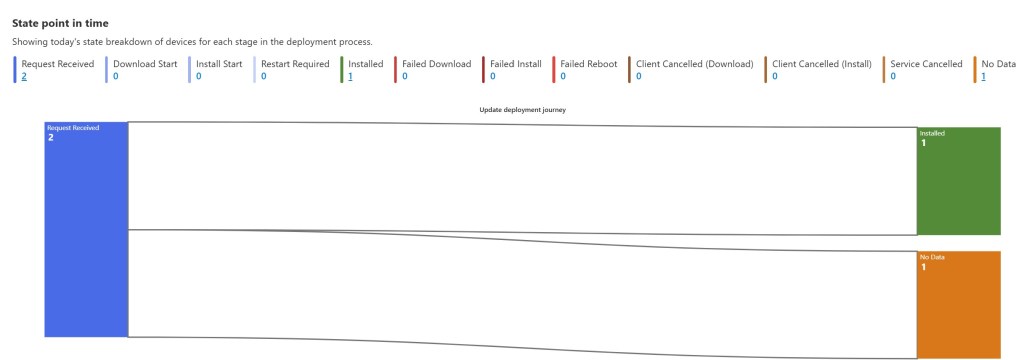
Furthermore, within the State point-in-time section, you can view the status of the updated deployment at different stages of the deployment process, providing a snapshot of the current situation for each phase of the deployment. In practice, this section allows you to understand how many devices are at a given point in the process at that particular time, thus providing an immediate view of the overall progress.
Feature Update Trending Report
The Feature Update Trending report performs a similar function to the trending report for Quality Updates, but with even more significance because the release of a feature update unfolds over weeks or months, and it’s essential to have a view of the update trend over time.
This report clarifies whether the rollout is proceeding as expected and is therefore an excellent tool for measuring the quality of the orchestration, not just the final outcome.
Autopatch Management Status Report
One of the most common pitfalls when reading reports is the assumption that if the update dashboard shows a positive status, then all devices are properly updated. In reality, a significant portion of systems may not have been correctly targeted or are not yet managed by the expected model. To this end, Microsoft provides a report called Autopatch management status report (located in the Devices > Windows updates > Monitor section) that provides a tenant-wide view of all Windows devices managed by Intune, including those not yet covered by update policies or not correctly enrolled in Windows Autopatch.
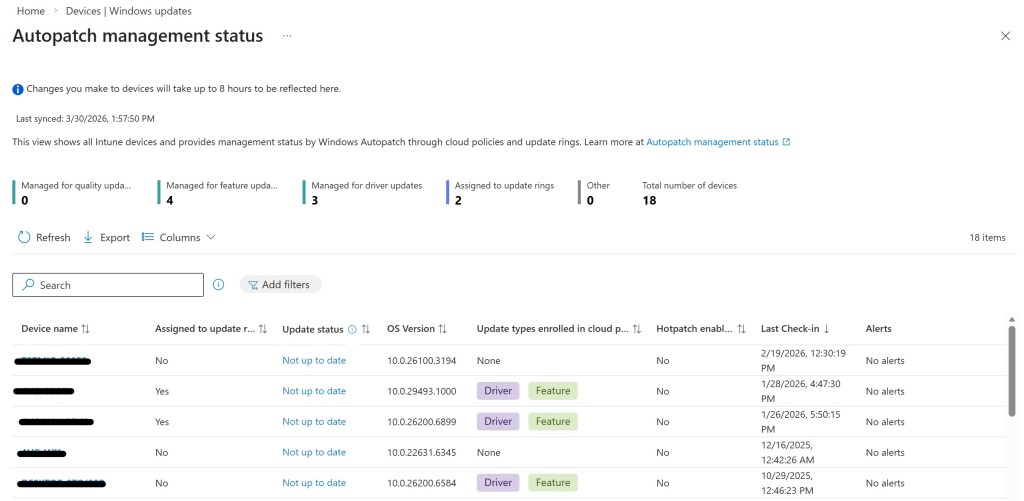
From a governance perspective, this is probably the most important report, as it allows you to identify any targeting inconsistencies or enrollment issues that, if ignored, would make any compliance percentage less reliable than it seems.
Alerts and Remediations
In the Windows Autopatch model, alerts are used to highlight issues that may impact the ability of devices to stay up-to-date or compliant. Within the Devices > Windows updates > Feature update/Quality updates section, there is a section called Alerts and remediations that allows you to view a list of reports regarding devices, policies, and/or other elements of the process that may slow down or compromise the outcome of the process itself.
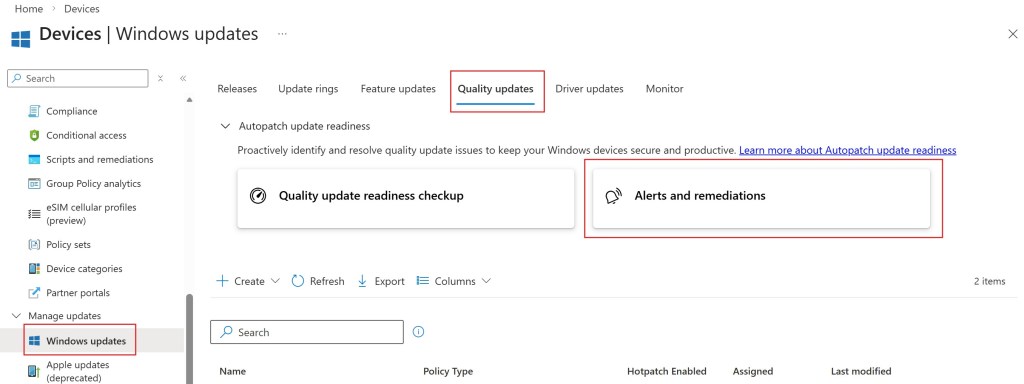
This report allows IT admins to operate proactively, intercepting any critical issues before they become problems, thus enabling effective prioritization. Furthermore, within the report, alerts provide context for remediation, allowing IT to more quickly identify the actions needed to effectively resolve issues.
Update Readiness Checkup
Within the Feature updates and Quality updates tabs under Devices > Windows updates, there are two sections called Feature update readiness checkup and Quality update readiness checkup, respectively, which link to the same report: Update readiness checkup. This report allows you to verify in advance whether your devices are actually ready to receive quality updates or feature updates.
By selecting the update type (Feature Update or Quality Update) and the target release, you can generate, using the Run checkup button, a comprehensive report containing all the necessary information on the readiness status of your systems.
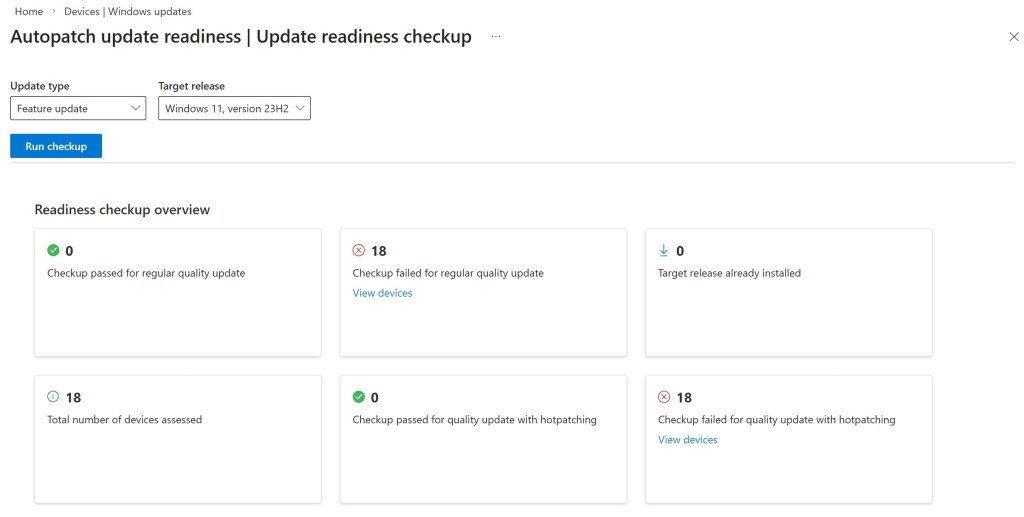
This report also includes a section dedicated to recommendations which, as previously mentioned, allows for the collection and best management of the various types of problems currently existing:

This report has a significant impact on organizations, as it allows them to intercept blocking issues such as disk space, connectivity, compatibility, or other prerequisites before deployment even begins, with not only technical but also organizational benefits.
References
Here are some useful references to official documentation:
- Maintain the Windows Autopatch environment
- Conflicting configurations
- Frequently Asked Questions about Windows Autopatch
Conclusions
Windows Autopatch not only simplifies the distribution of updates, but also offers the tools needed to understand their progress and proactively manage any impacts. The platform’s true value lies in its visibility into every single phase of the process, a crucial aspect especially for those who must assess risk and service quality.
 Enterprise Mobility Blog