The August 2026 Security Maintenance Release reports that 56 vulnerabilities have been fixed: 38 CVEs reported by Google and 18 Samsung-specific SVEs, 8 of which were classified as critical (see link). This trend is not an isolated case, as in previous months, the number of vulnerabilities fixed was around 50. Furthermore, according to the Verizon 2025 Mobile Security Index, organizations reporting attacks on mobile devices increased by 85% in 2025, while a 2025 Zscaler report recorded a 67% year-over-year growth in Android malware.
According to these numbers, the volume of patches to be managed on a fleet of Android devices is growing faster than the ability of many IT processes to distribute them in a timely manner. Indeed, the main bottleneck is organizational, as coordinating a firmware update process across the entire fleet is particularly complex without a centralized solution that allows for gradual and controlled releases.
For the reasons outlined above, Microsoft has decided to bring Samsung firmware update management into the Microsoft Intune platform, leveraging integration with the Samsung E-FOTA solution.
This article has a two-fold objective: to illustrate the concrete changes to the operating model and to provide a step-by-step guide to configuring the integration between Intune and Samsung Knox E-FOTA.
Overview
Before deep-dive into the integration with the Microsoft Intune solution, it’s worth clarifying what Knox E-FOTA is: Samsung Knox E-FOTA (Enterprise Firmware-Over-The-Air) is the service Samsung uses to allow companies to control the firmware versions distributed on Samsung devices.
Normally, a Samsung device receives updates from FOTA B2C servers—the same system used for consumer devices—which always updates devices to the latest available version, leaving corporate fleet managers unable to control it.
Obviously, this type of approach isn’t compatible in most environments, as an uncontrolled OS update can create compatibility issues with apps or introduce different behaviors at the same time. Knox E-FOTA was created to solve precisely these types of problems, providing IT with a series of operational advantages, such as:
- the ability to choose which firmware version to distribute, even if it’s not the latest available, locking devices onto that version until compatibility with corporate apps has been validated;
- Forced updates, deployable without any user interaction;
- scheduling releases in time windows that do not interfere with operations (e.g., outside of business hours);
- ability to test an update on a small group of devices before rolling it out to the entire device fleet.
The mechanism through which this control translates into practice is campaigns.
Campaigns are how an IT administrator defines a firmware release: with this feature, they can specify which firmware version to distribute, to which group of devices, and, as previously mentioned, under which conditions the download and installation can be performed (for example, a dedicated time window, a minimum battery threshold, or the presence of a Wi-Fi network). It is also possible to pre-validate the firmware on a small group of pilot devices and only then extend the same campaign to the remaining devices.
An important note to keep in mind is that this feature is not included by default in every tenant. As with any Samsung enterprise solution, access requires a dedicated license; In fact, to use this service, a Samsung Knox E-FOTA license is required, purchased separately from Samsung or available as part of the Knox Suite bundle (a suite that groups multiple Knox products under a single license key).
Integration between solutions
Until now, integration between Microsoft Intune and Samsung Knox E-FOTA has been rather limited: the only functionality available was the synchronization of Entra ID groups to the Knox Admin Portal to allow for group membership alignment between the two platforms. The entire process of creating, releasing, and monitoring firmware campaigns remained entirely within the Samsung console, as did all operational rollout decisions.
With the release of Microsoft Intune Service Release 2607, the entire campaign release process has been fully integrated within the Microsoft portal to minimize the operational complexity of managing the two portals.
Requirements
The requirements for using the Samsung E-FOTA solution are as follows:
- Knox-protected Samsung devices registered in the following Android Enterprise modes:
- Corporate-owned dedicated (COSU)
- Corporate-owned fully managed (COBO)
- Corporate-owned with a work profile (COPE)
- Reachability of the following Samsung endpoints (see link).
- Availability of a Samsung Knox E-FOTA license.
- Account with Intune Administrator rights on Microsoft Intune for proper configuration of the Samsung Connector on the Microsoft portal.
- Account with Administrator rights on the Samsung Knox portal for proper integration with Microsoft Intune.
- Managed Google Play configured on the tenant.
Samsung Connector Configuration
This step establishes the communication channel between Intune and Samsung Knox E-FOTA and is a prerequisite for all subsequent steps: without an active and authorized connector, none of the following operations can be performed. The procedure requires two separate authentications, one in Intune and one in the Knox portal, since the connection is formally authorized in the latter.
If you do not have a Samsung business account, a step-by-step guide for creating one is available at the following link.
Below are the steps required to create the connector:
- Log in to the Microsoft Intune console with an administrative account.
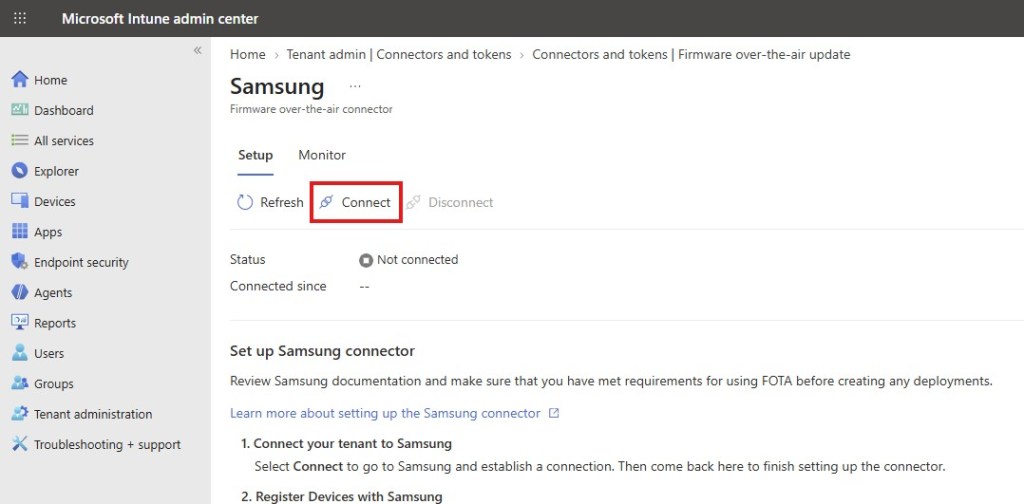
- Go to Tenant administration > Connectors and tokens > Firmware over-the-air update.
- Select Samsung (it should be shown as Not connected).
- Press the Connect button.
- Press Connect button again
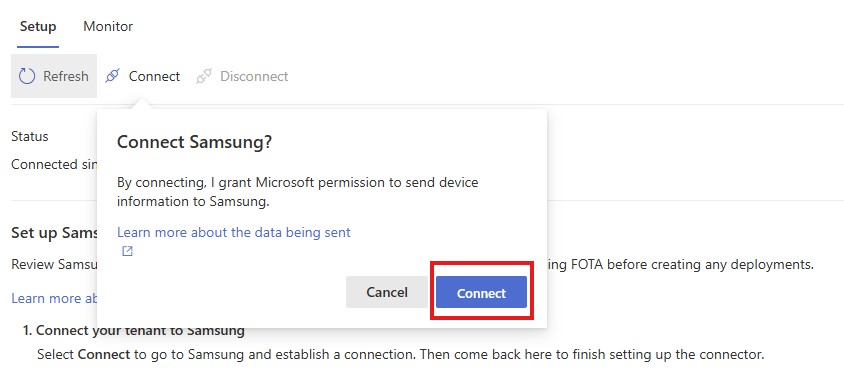
- Once you click the button, a new window will open where you’ll need to enter your Samsung credentials.
- Click the Allow button to allow Microsoft access to Samsung services.
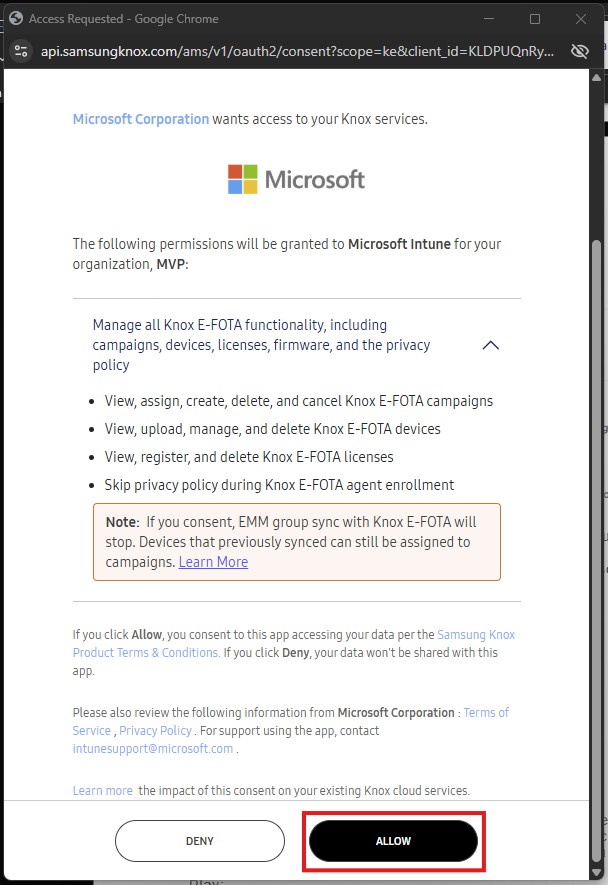
- Once you click the button, a new window will open where you will need to enter your Samsung credentials.
- Click the Allow button to allow Microsoft to access Samsung services.
- If the process is successful, the connector will change to Connected.
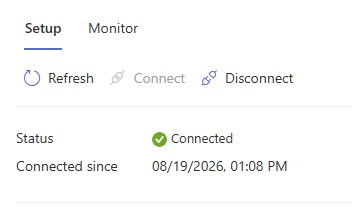
Apps Deployment
For a device to be properly managed by E-FOTA, it must have the necessary apps to communicate with the Samsung service. Therefore, this step involves deploying the two required applications, Knox E-FOTA and Knox Service Plugin, in required mode via Managed Google Play:
- From the Microsoft Intune portal, go to the Apps > Android section.
- Press the Create button.
- From the Category drop-down menu, select Store app and then press the Managed Google Play app tile.
- Press the Select button.
- In the search field available on Managed Google Play, search for the Knox E-FOTA app and press the app displayed.
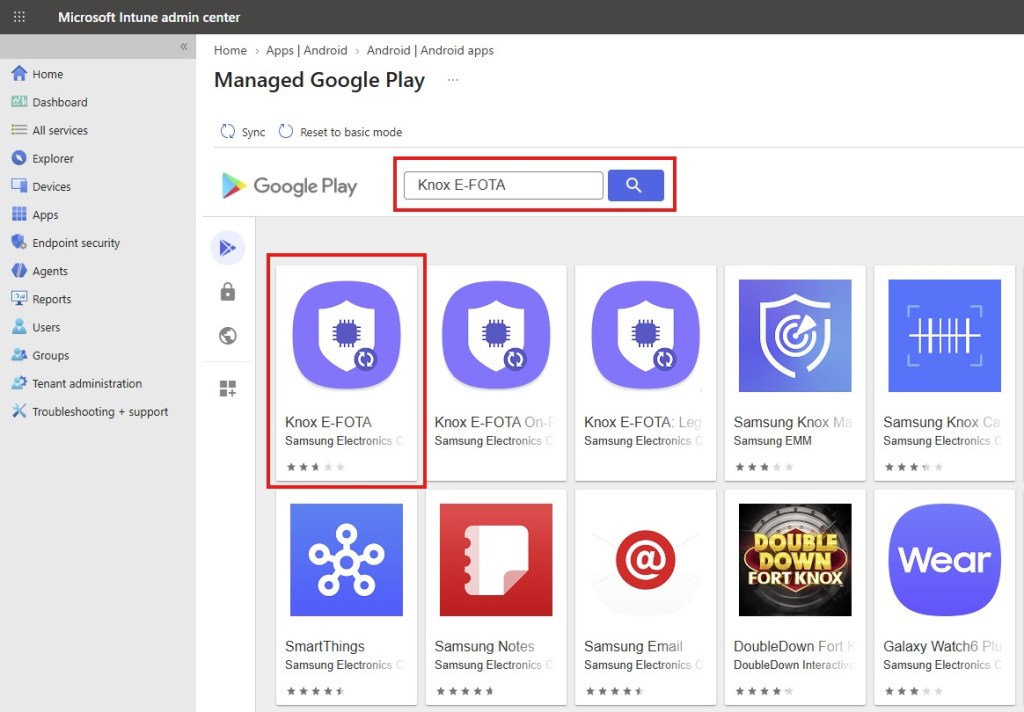
- Press the Select button and then press the Sync button (the next time you sync, the app will be in the Approved status).
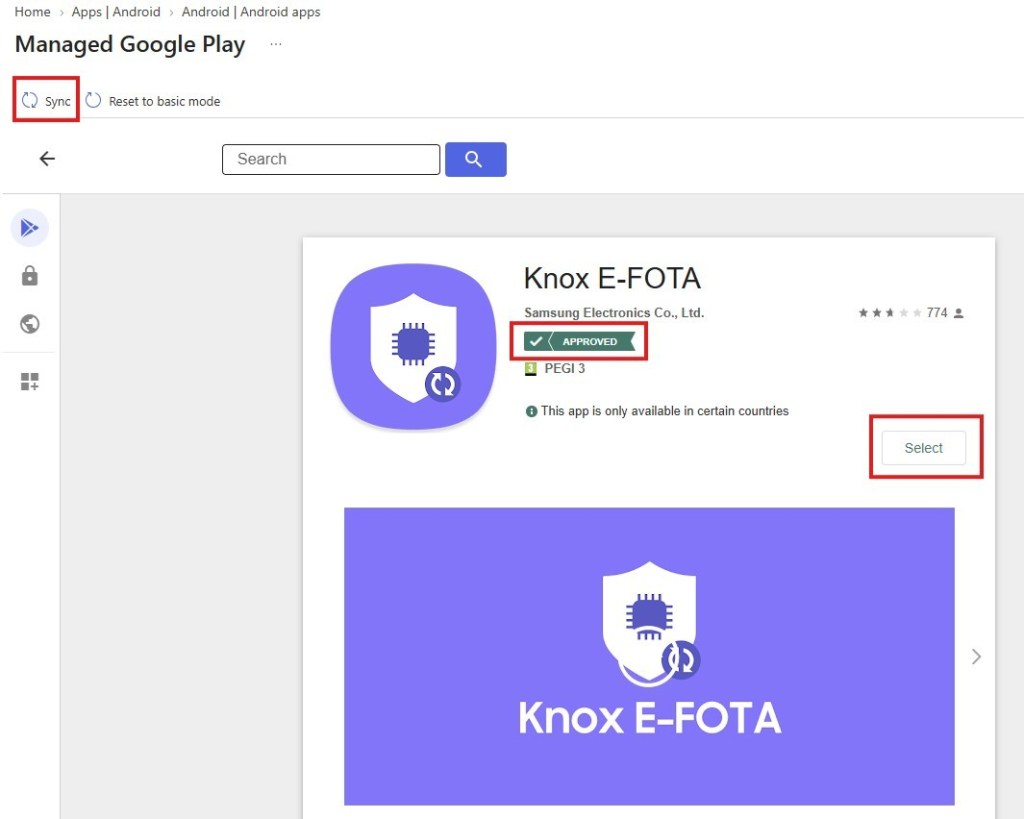
- Follow the same procedure for the Knox Service Plugin application.
- Once both applications are visible on the Microsoft Intune portal, you can proceed with deploying the apps to various Android devices.
- Select the Knox E-FOTA app and access the Properties section.
- Click the Edit button in the Assignments section.
- Click the Add group button to deploy the app to a specific Entra ID group, or use the Add all devices button to deploy the app to the entire Android device fleet (you can optionally use filters to limit the application to Samsung devices only).
- Click the Review + Save button.
- Confirm the change by clicking the Save button again.
- Follow the same procedure for the Knox Service Plugin application.
OEM Configuration Deployment
Once the apps are deployed, you need to enable the policy controls that allow Intune to manage the firmware component: the OEMConfig template acts as a bridge between the native Samsung settings and the Intune management console. The steps required to create the appropriate policy are outlined below:
- From the Microsoft Intune portal, go to Devices > Android > Configuration.
- Click the Create button and select the New Policy option.
- From the Platform drop-down menu, select Android Enterprise.
- From the Profile Type drop-down menu, select Templates and then OEMConfig.
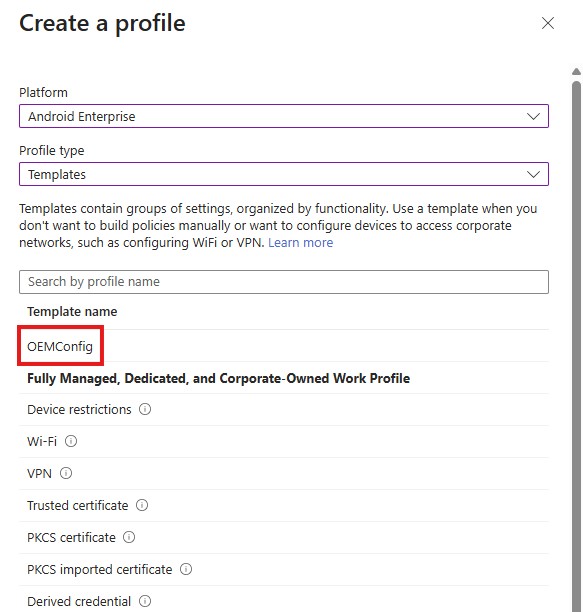
- Click the Create button.
- Assign a name to the policy you will create and an optional description.
- Click Select an OEMConfig app and select the Knox Service Plugin app.
- Click Select again to confirm the app selection.
- Click Next.
- Using the Locate button, find the following settings and set them as shown:
- Enable device policy controls: true
- Enable firmware controls: true
- Enable E-FOTA client installation & launch: true
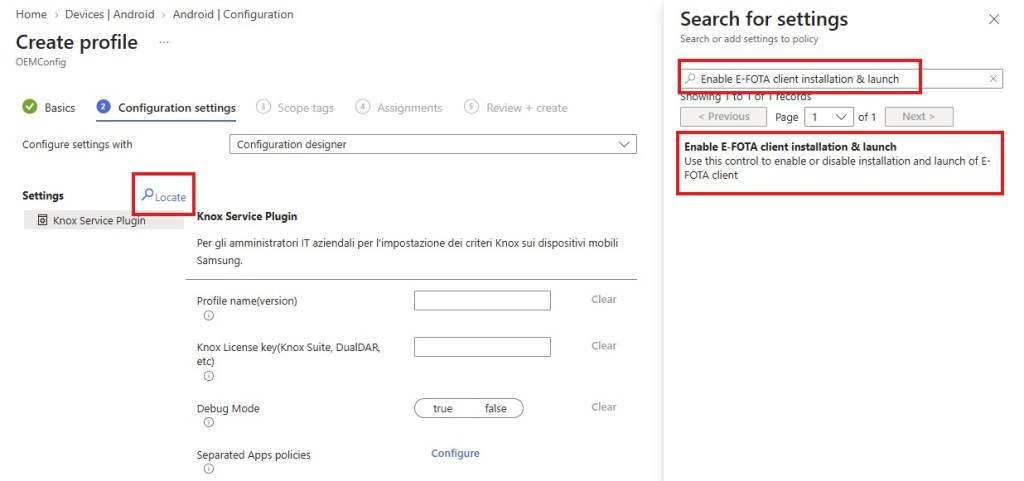
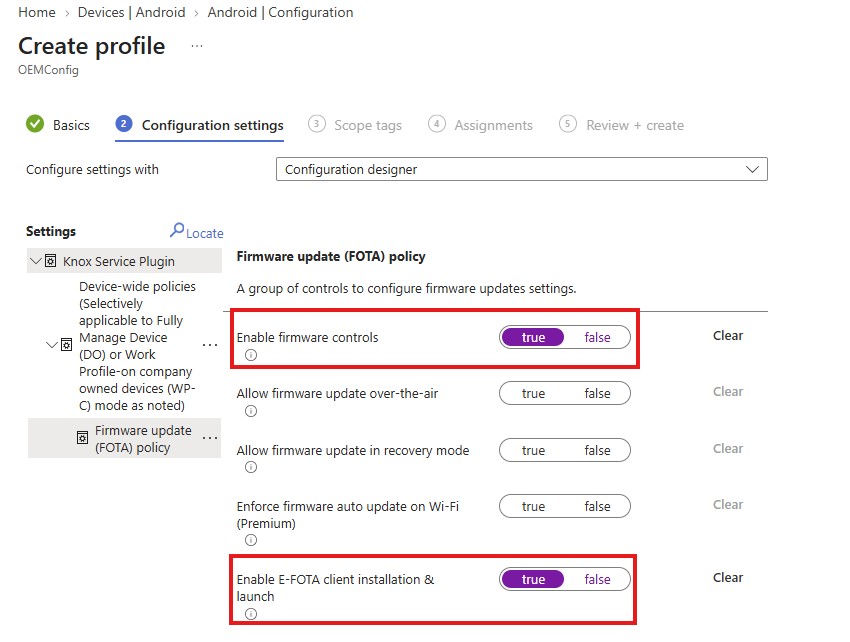
- Once you’ve selected all the settings, click Next.
- Assign a Scope Tag if desired and click Next.
- As with apps, click Add group to distribute the configuration profile to a specific Entra ID group, or use the Add all devices button to distribute the app across the entire Android device fleet (again, you can use filters to limit the application to Samsung devices only). Then, proceed with the wizard by clicking Next.
- Click Create to complete the policy creation process.
Device Sync
Once the connector creation and app and policy distribution procedures are complete, the next step is to inform Samsung which devices, among those managed by Intune, should actually be taken care of by the E-FOTA service. This step allows the selected Entra ID groups to be synchronized to Samsung, making them visible from the Knox Admin Portal. It’s important to note that Entra ID groups must contain devices (not users).
- From the Microsoft Intune portal, go to Tenant Administration > Connectors and tokens > Firmware over-the-air update.
- Select Samsung.
- Click Add groups.
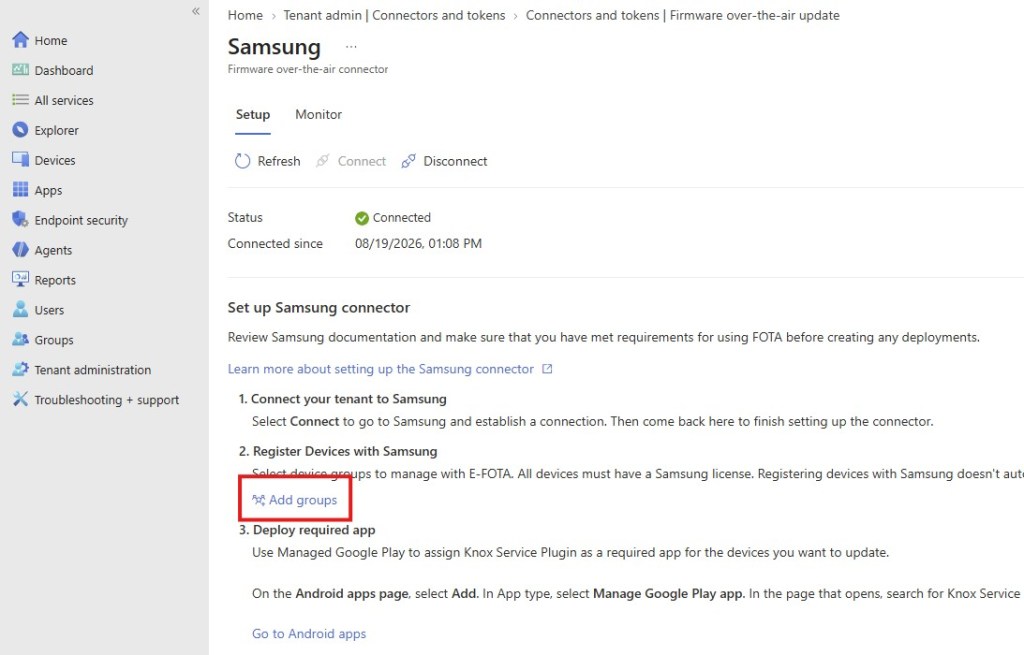
- Select the Login ID group containing the Samsung devices you want to sync (in my case, I created a dynamic group based on the device manufacturer).
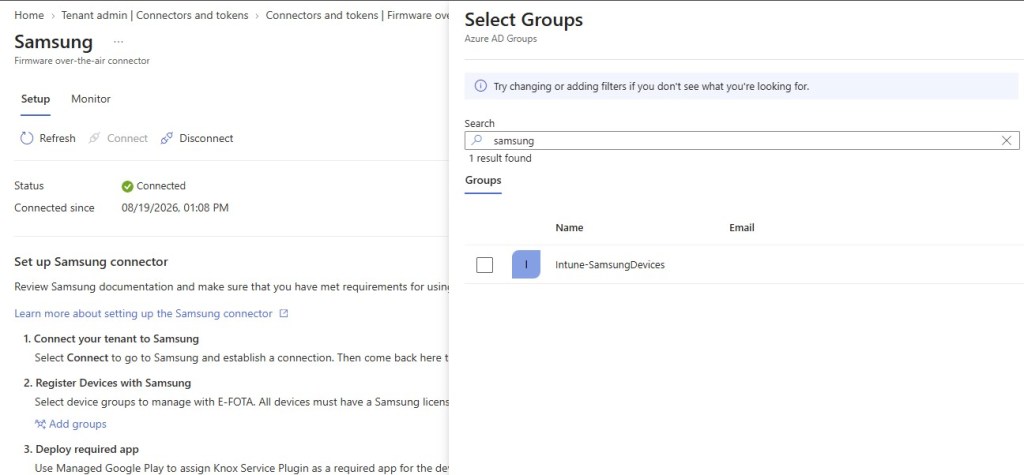
- Confirm your selection by clicking the Select button.
- Click the Register button to start the device upload process to Samsung.
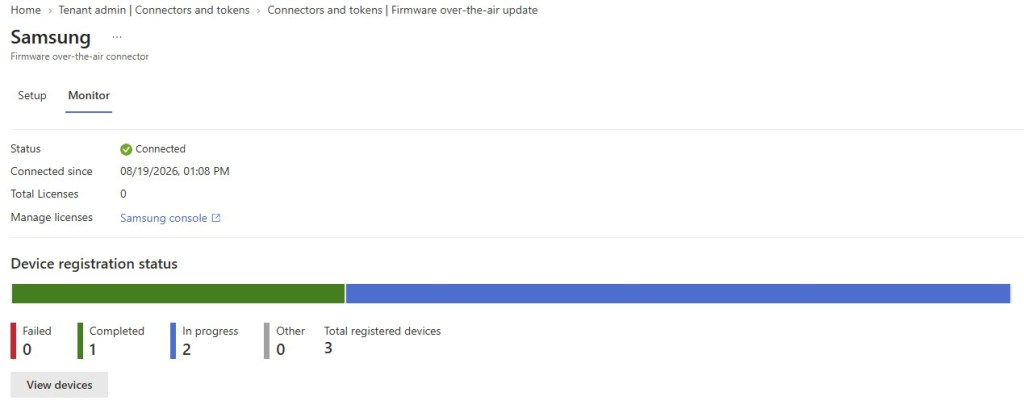
- Once the registration process is complete, log in to the Samsung Knox Admin Portal to verify that the devices are visible. You can also view the registration status in the Intune console, using the Monitor tab on the same screen.
Creating a campaign
Once device registration is complete, the IT admin can create the update campaign, which allows them to define which firmware to distribute, to whom, and under what conditions.
The following are the steps required to create an update campaign:
- From the Microsoft Intune portal, go to Devices > Android > Manage updates > Android FOTA deployments.
- Click the Create button.
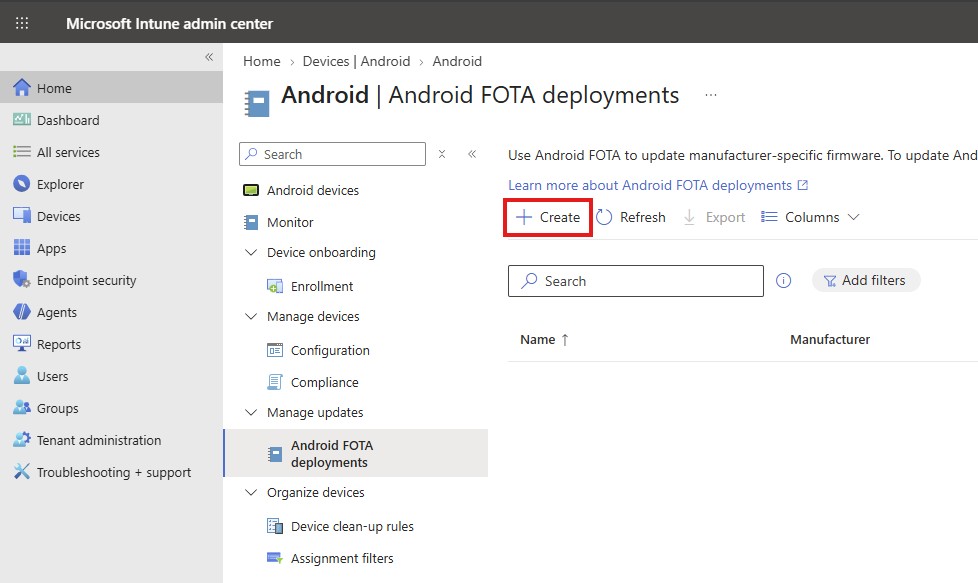
- From the Manufacturer drop-down menu, select Samsung.
- Click the Create button.
- Assign a name and an optional description for the update campaign, click the Next button and define the following settings as needed:
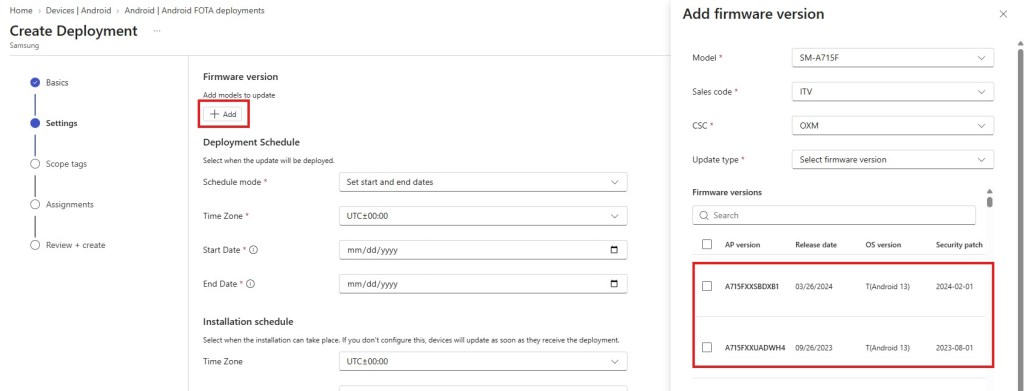
- Firmware version: Using the Add button, you can define the firmware version to apply to each model. Once the version is selected, click the Select button.
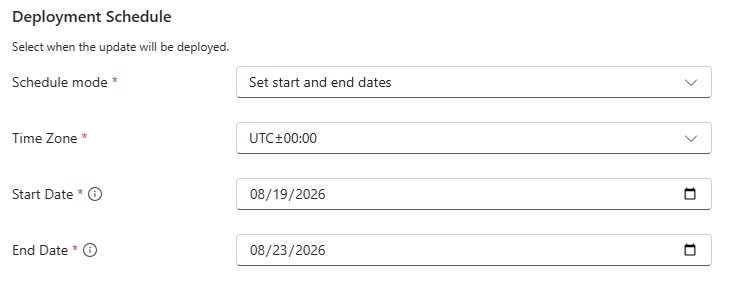
- Schedule mode: allows you to define a start date (Start Date), and possibly an end date (End Date) for the distribution of the update.
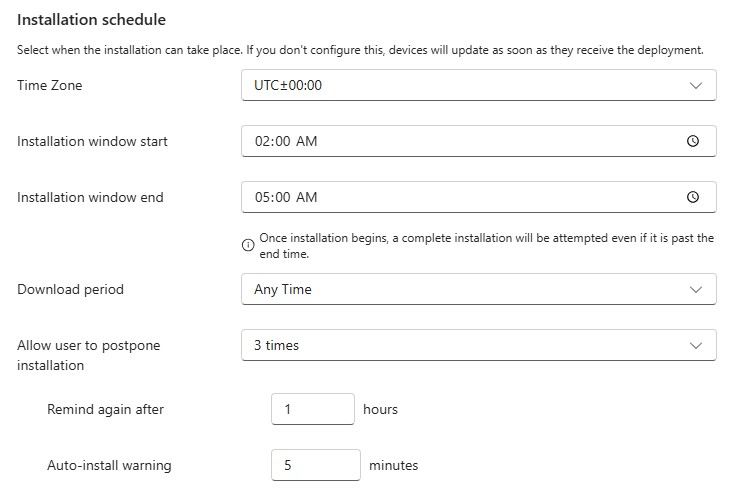
- Installation window start/Installation window end: Allows you to define a maintenance window within which the device can proceed with the update.
- Download period: Allows you to define when the device can download the update.
- Allow user to postpone installation: By configuring this setting, you can allow the user to postpone the installation of the update once it has been received (up to a maximum of 3 times). If you decide to allow the user to postpone the update, you can define periodic reminders (Remind again after – Auto-install warning).
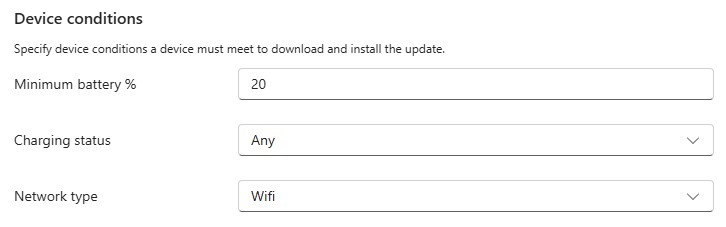
- Minimum battery %: Allows you to specify the minimum battery level the device must meet to proceed with the update installation.
- Charging status: This setting authorizes the device to perform the update regardless of the type of connection you are using or only when connected to a Wi-Fi network.
- Network type: This setting authorizes the device to perform the update regardless of the type of connection you are using or only when connected to a Wi-Fi network.
- Once you’ve defined the parameters, click Next.
- Assign a Scope Tag if desired and click Create again.
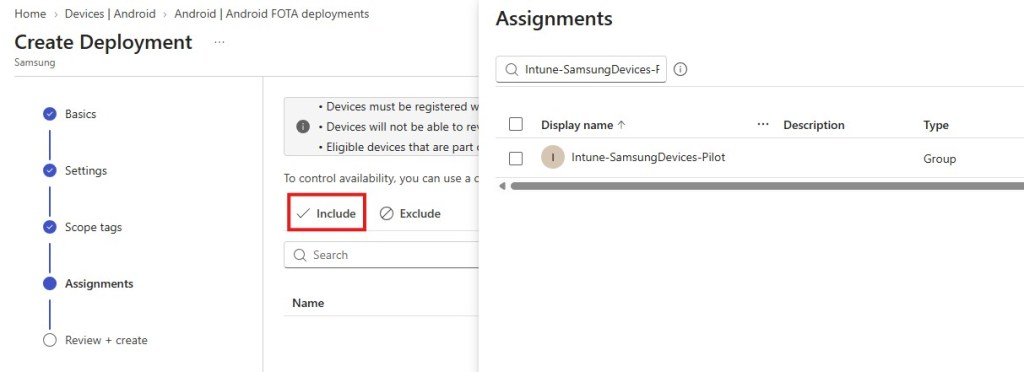
- In the Assignments section, click Include to add the campaign’s target device group.
- Complete the campaign creation wizard by clicking the Create button.
- Once the campaign is created, the devices will receive the specific updates based on the defined methods.
References
Here are some useful links to official documentation:
- Samsung Knox E-FOTA documentation
- Devices Secured by Knox
- What’s new in Microsoft Intune – Microsoft Learn
Conclusions
The integration of Samsung Knox E-FOTA into Microsoft Intune addresses a security issue that, as the opening numbers in this article demonstrate, shows no signs of slowing down. Adopting Samsung E-FOTA in conjunction with Microsoft Intune mitigates this very risk, giving administrators the ability to plan, test, and deploy firmware updates from the same place they already govern other security policies, without having to manage a separate console.

